> ## Documentation Index
> Fetch the complete documentation index at: https://docs.coingecko.com/llms.txt
> Use this file to discover all available pages before exploring further.
# Notion
> Connect your Notion AI agent to CoinGecko MCP for live crypto data
[Notion](https://www.notion.com) AI Agents support custom MCP connections, giving your agent access to live CoinGecko data — prices, market trends, onchain analytics, and more.
Notion requires authenticated MCP — [CoinGecko API key](https://www.coingecko.com/en/api/pricing) is needed.
## Setup
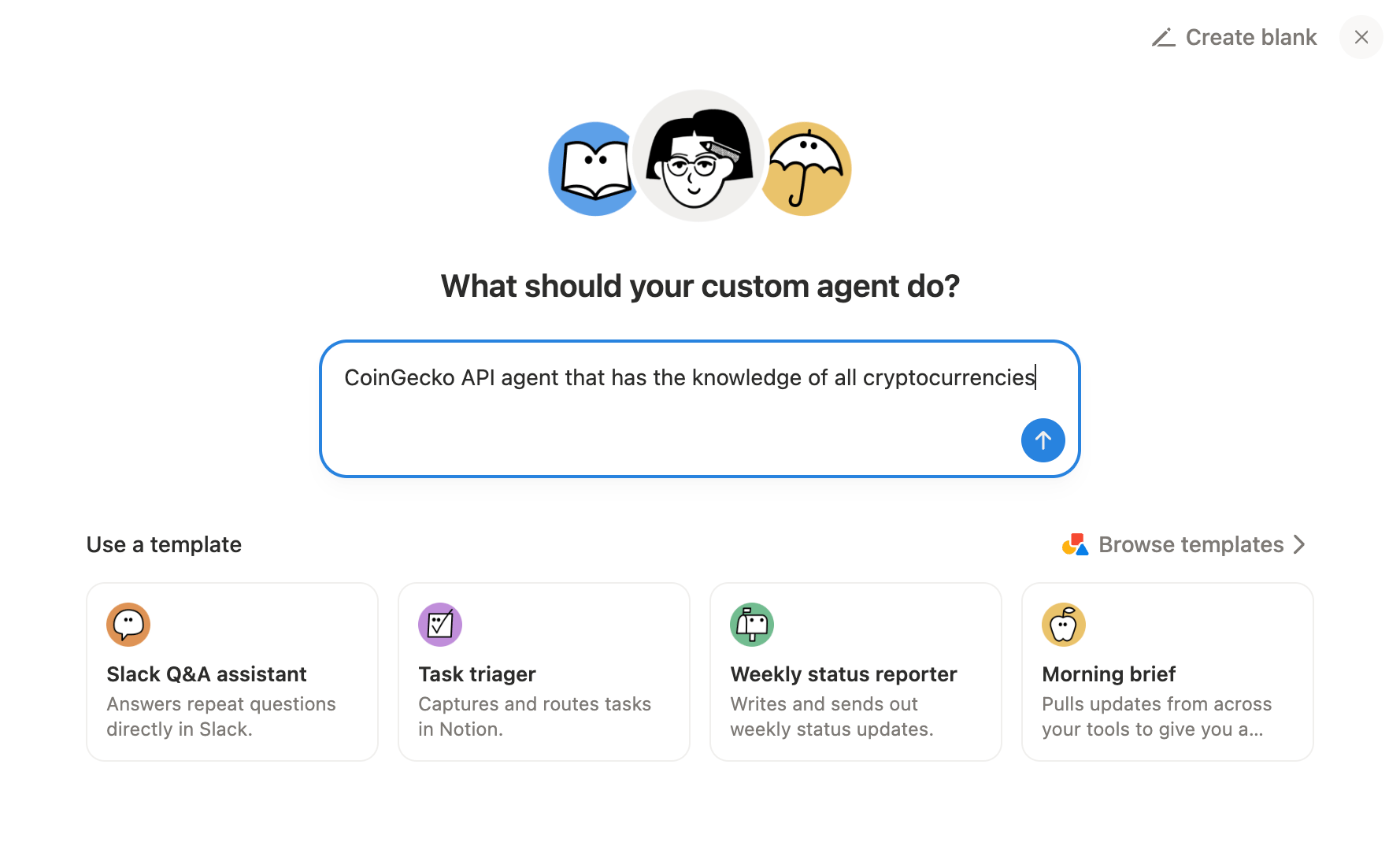
Open Notion and navigate to **AI Agents** (or click **+ New agent** from the sidebar). Describe what your agent should do.
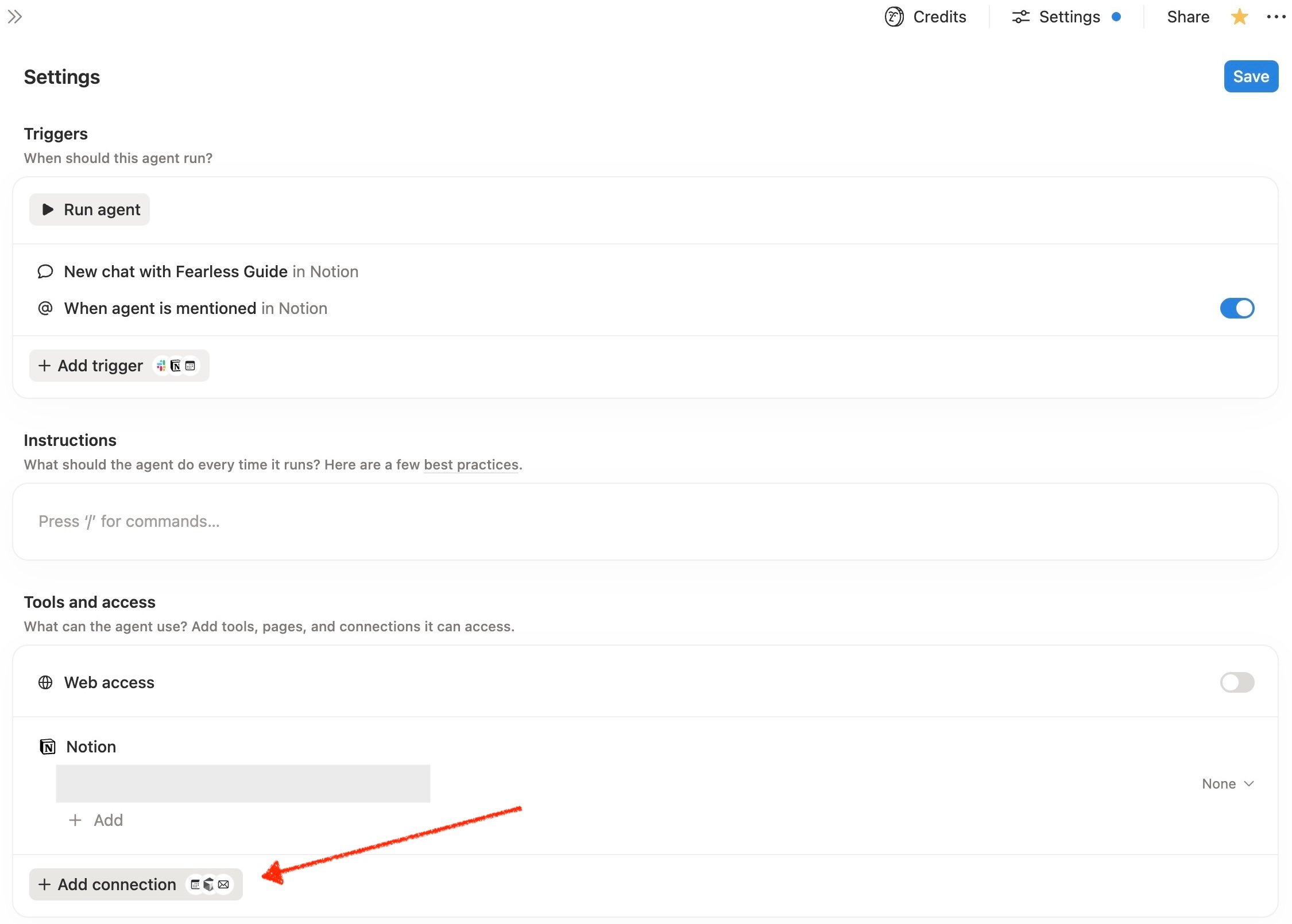
 In your agent's settings, click **Add connection**. Scroll to the bottom of the left sidebar and click **+ Add custom MCP**.
 Fill in the connection form:
| Field | Value |
| ------------------ | --------------------------------------- |
| **MCP server URL** | `https://mcp.pro-api.coingecko.com/mcp` |
| **Name** | `CoinGecko MCP` |
| **Authentication** | OAuth |
Fill in the connection form:
| Field | Value |
| ------------------ | --------------------------------------- |
| **MCP server URL** | `https://mcp.pro-api.coingecko.com/mcp` |
| **Name** | `CoinGecko MCP` |
| **Authentication** | OAuth |
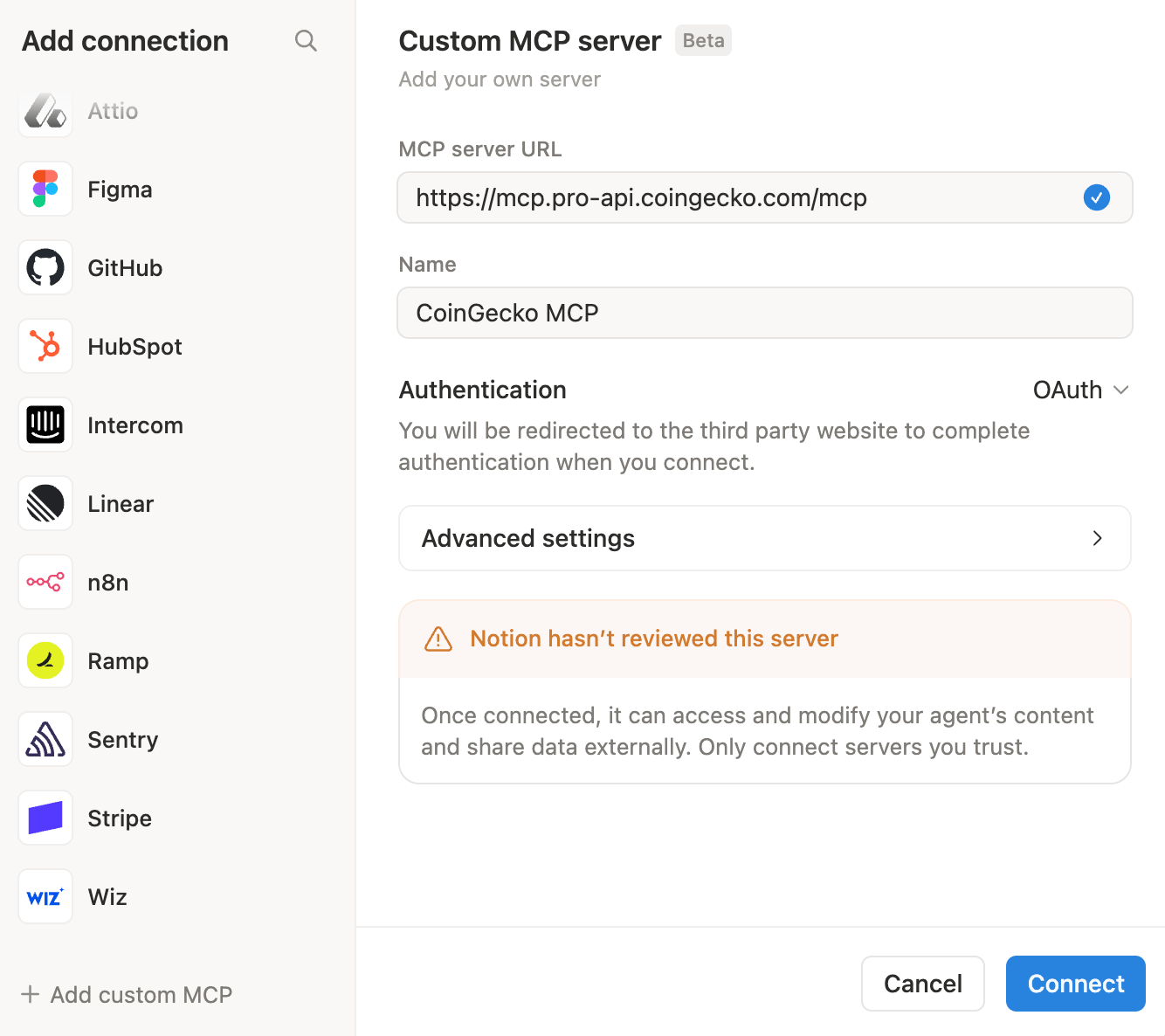 > Notion displays a warning: *"Notion hasn't reviewed this server."* This is expected for all custom MCP servers.
Click **Connect**.
A browser tab opens at `mcp.pro-api.coingecko.com/authorize`. Paste your API key and click **Log in and Approve**.
> Get a key at [coingecko.com/en/api/pricing](https://www.coingecko.com/en/api/pricing).
## Try It Out
Your Notion AI agent now has access to live CoinGecko data. Try these prompts:
* *"What is the current price of Bitcoin in USD?"*
* *"Show me the top 10 cryptocurrencies by market cap with price, 24h change, and volume in a table."*
* *"What are the top trending coins on CoinGecko right now?"*
* *"Research the top 5 DeFi coins and save a summary to this page."*
* *"Pull today's trending coins and add them as a database entry."*
## Troubleshooting
Make sure the MCP server URL begins with `https://` and is a complete, valid URL.
This appears for all custom MCP connections and is not an error. Safe to proceed.
Check that your browser isn't blocking popups from Notion. Allow popups and retry.
Confirm the MCP connection is active in your agent's settings. Re-authorize if your session has expired.
> Notion displays a warning: *"Notion hasn't reviewed this server."* This is expected for all custom MCP servers.
Click **Connect**.
A browser tab opens at `mcp.pro-api.coingecko.com/authorize`. Paste your API key and click **Log in and Approve**.
> Get a key at [coingecko.com/en/api/pricing](https://www.coingecko.com/en/api/pricing).
## Try It Out
Your Notion AI agent now has access to live CoinGecko data. Try these prompts:
* *"What is the current price of Bitcoin in USD?"*
* *"Show me the top 10 cryptocurrencies by market cap with price, 24h change, and volume in a table."*
* *"What are the top trending coins on CoinGecko right now?"*
* *"Research the top 5 DeFi coins and save a summary to this page."*
* *"Pull today's trending coins and add them as a database entry."*
## Troubleshooting
Make sure the MCP server URL begins with `https://` and is a complete, valid URL.
This appears for all custom MCP connections and is not an error. Safe to proceed.
Check that your browser isn't blocking popups from Notion. Allow popups and retry.
Confirm the MCP connection is active in your agent's settings. Re-authorize if your session has expired.