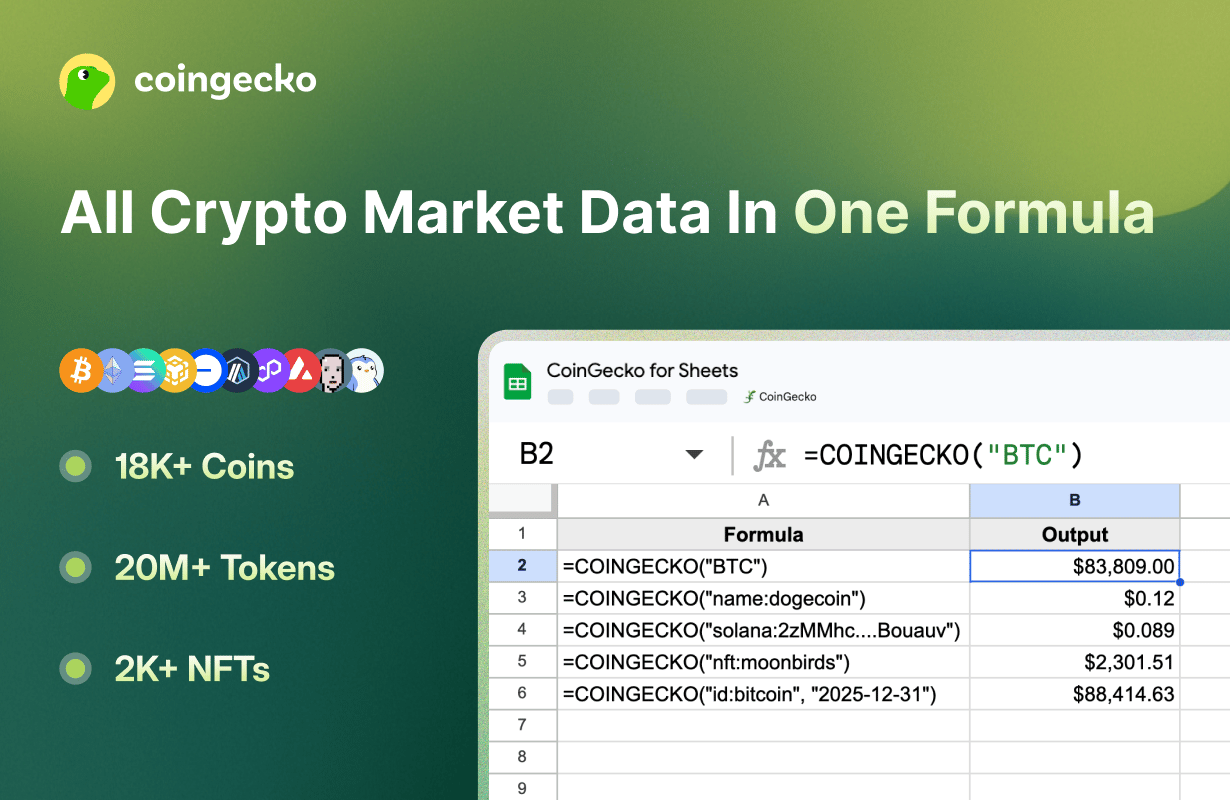
Unnamed
Your privacy is our priority. This official add-on follows the principle of ‘least privilege.’ Unlike other tools, it does not request permission to access your Google Drive or all of your spreadsheets. It is strictly limited to reading and updating only the specific sheet you have currently opened to fetch CoinGecko data.If you have any questions or feedback, please share with us here.

1. Quick Start

1

Install Addon

Visit ‘CoinGecko for Sheets: Live Crypto Prices’ on Google Workspace Marketplace, and click Install.
2

Authorize

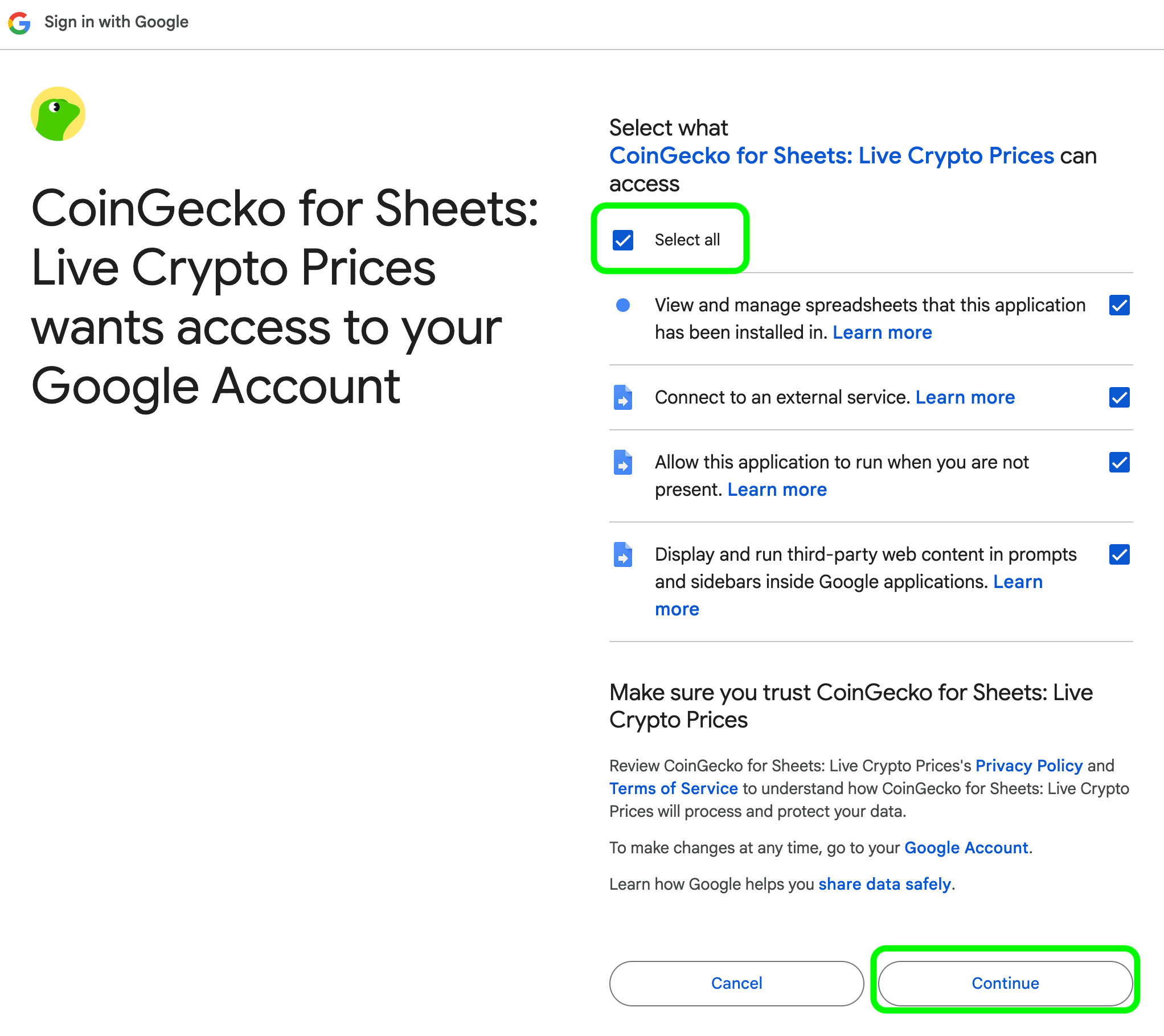
Check Select all to grant the required permissions.Screenshot2026 02 04at7 18 26PMTo provide a seamless experience, CoinGecko for Sheets needs these permissions to communicate with our API and write data to your sheet. We follow the principle of “least privilege” and only access data necessary to run the tool. We do not have access to your email address and personal data.
3

Set API Key

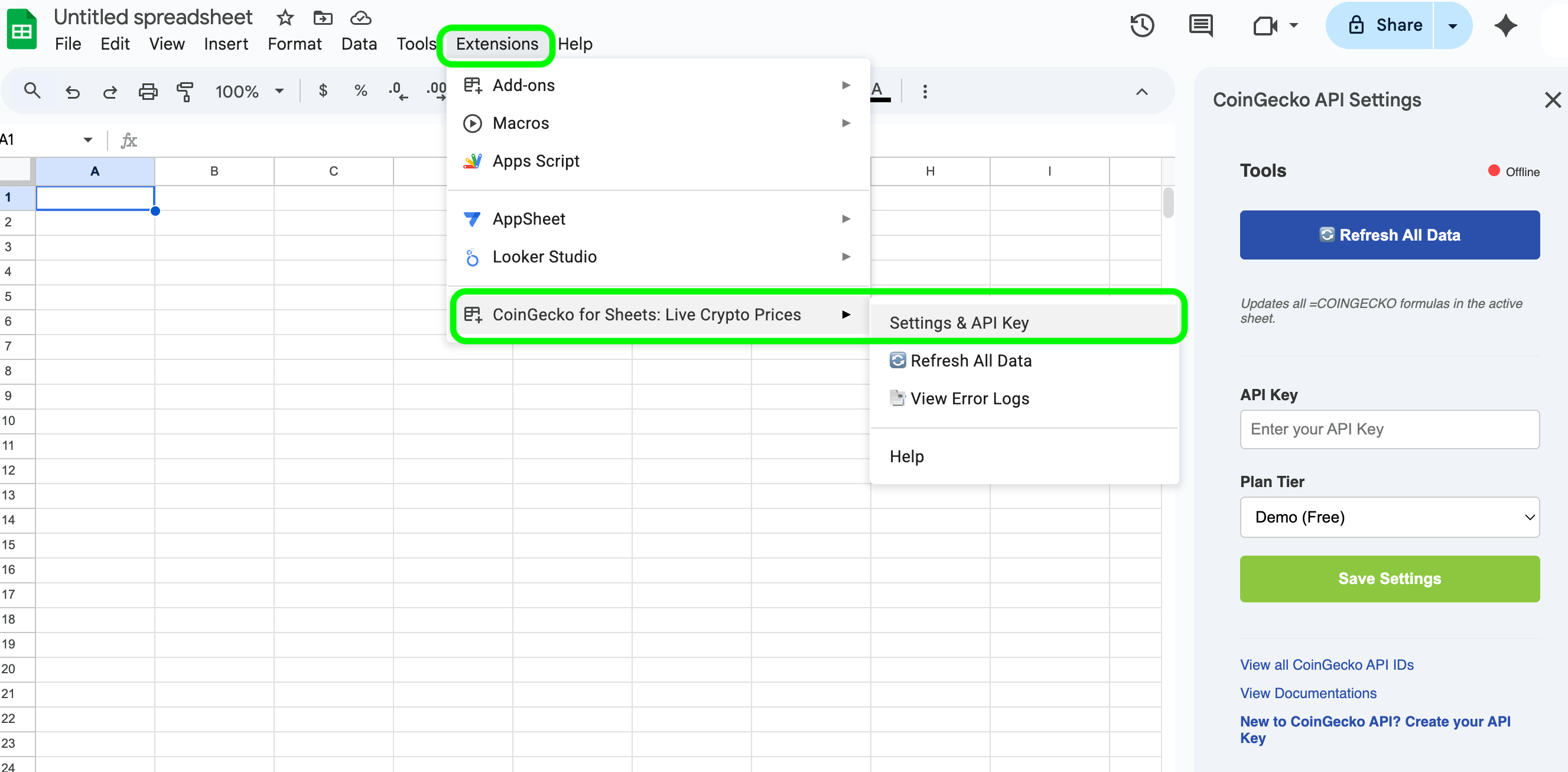
  • Go to Extensions > CoinGecko > Settings & API Key Screenshot2026 02 04at7 19 34PM 2
  • Enter your CoinGecko API Key in the Settings sidebar.
  • Select your plan (Demo or Pro) and click Save Settings.
You’re now ready to use the =COINGECKO() function!

2. Using the =COINGECKO() Function

The add-on uses a single “Smart Routing” function. It automatically detects if you are looking for a market ticker, a specific coin ID, an on-chain contract, or an NFT.

a. Get Latest Price of a Token or NFT

Data Type & SyntaxDescriptionFormula Example
Price by Ticker Symbol
=COINGECKO("[symbol]")
Insert ticker symbol like ‘BTC’ or ‘ETH’ to get the current price.

If 2 or more coins share the same ticker symbol, coin with the largest market cap will be prioritised.

Smart Routing: if a token symbol is not found www.CoinGecko.com, it will search for token symbol www.GeckoTerminal.com that has the most liquid pool.
=COINGECKO("BTC")
=COINGECKO("ETH")
=COINGECKO("SOL")
=COINGECKO("CRYPTOVC")
=COINGECKO("人生K线")
Price by Coin Name
=COINGECKO("name:[coin_name]")
Lookup crypto price by a token name. This prioritise tokens that are listed on www.CoinGecko.com=COINGECKO("name:Ethereum")
=COINGECKO("name:leo token")
Price by Coin ID
=COINGECKO("id:[coin_id]")
Lookup crypto price by a unique coin id.

View full Coin IDs.
=COINGECKO("id:solana")
=COINGECKO("id:usd-coin")
On-chain DEX Price
=COINGECKO("[onchain_network_id]:[token_address]")
Lookup onchain DEX token price by network and token address. This prioritise tokens that are listed on www.geckoterminal.com

Get full Onchain network IDs.
=COINGECKO("base:0x...")
=COINGECKO("solana:2zM...")
NFT Floor Price
=COINGECKO("nft:[nft_id]")
Lookup NFT floor price by a unique NFT ID.

View full NFT IDs.
=COINGECKO("nft:pudgy-penguins")
Pro Tip: Use the Coin ID (e.g., bitcoin-cash instead of BCH) for the most reliable results, as symbols can sometimes be shared by multiple tokens.

b. Get Historical Price of a Token

Data TypeDescriptionSyntax & Formula Example
Get Historical Coin Price
=COINGECKO("id:[coin_id]", "[YYYY-MM-DD]")
Get historical price of a specific date (daily 00:00 UTC) of a coin on CoinGecko, based on unique Coin ID.

View full Coin IDs.
=COINGECKO("id:bitcoin", "2025-12-31")

=COINGECKO("id:ethereum", "2025-11-30")

c. Get List of Top Market Cap Ranked Tokens on CoinGecko.com

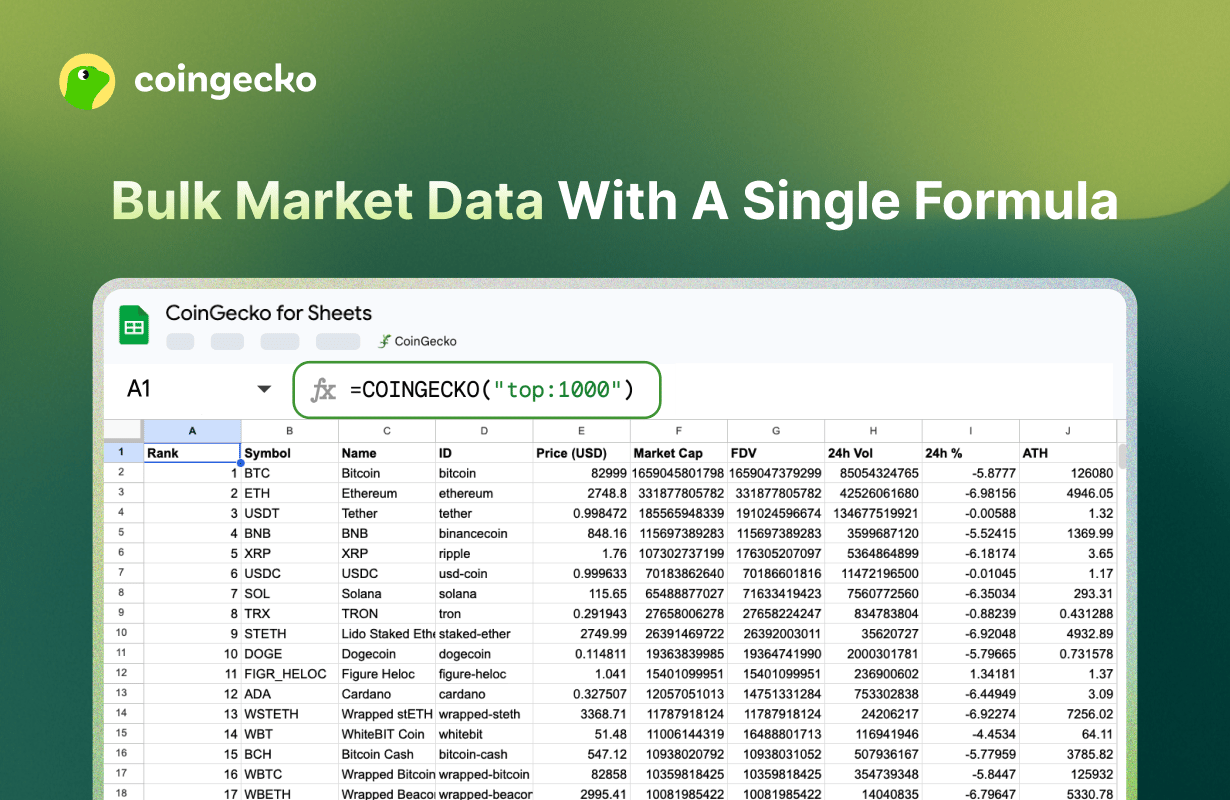
Unnamed(2) Get up to 1,000 token price & market data with just 1 single formula input
Data TypeDescriptionSyntax & Formula Example
Top Mcap Coins
=COINGECKO("top:[number]")
Get Price and Market data of Top N Mcap coins on CoinGecko=COINGECKO("top:10")
=COINGECKO("top:100")
Top Mcap Coins of a Cateogry<br />=COINGECKO("top:[number]:[category_id]")Get Price and Market data of Top Mcap coins of a specific category

Get Category IDs here.
=COINGECKO("top:10:meme-token")
=COINGECKO("top:100:artificial-intelligence")
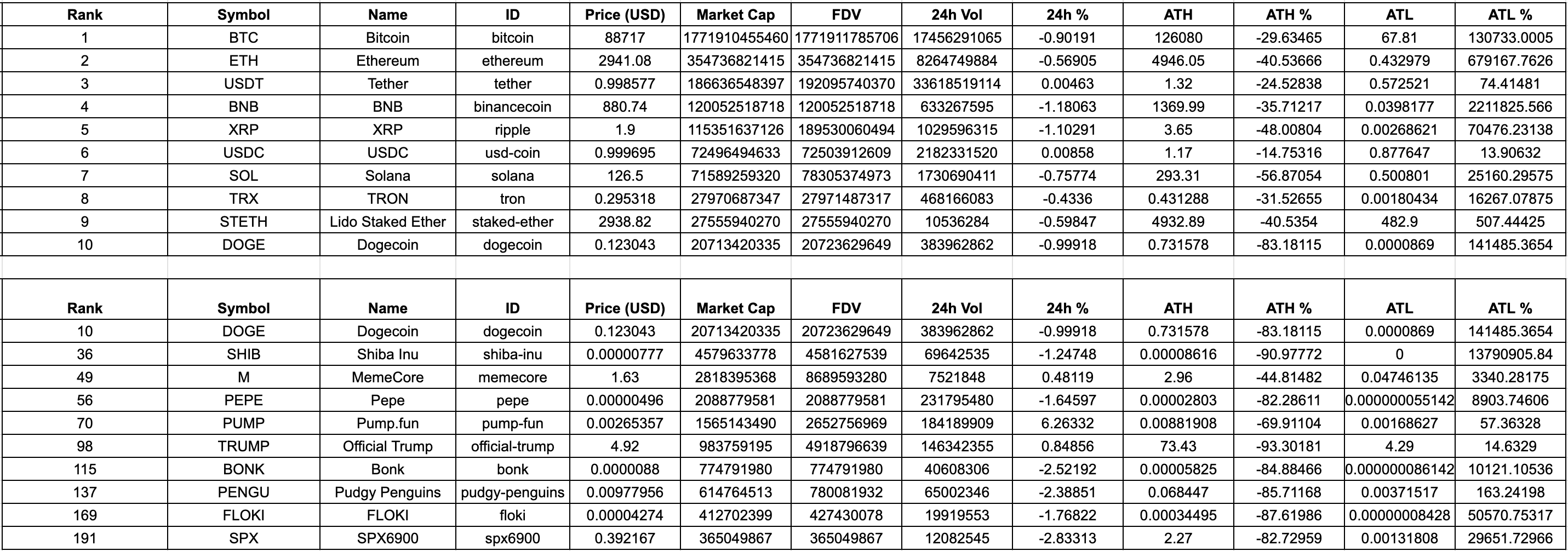
Output example: Top Mcap Coins Google Sheet

3. Other Features

Unnamed(1)

🔄 Bulk Refresh

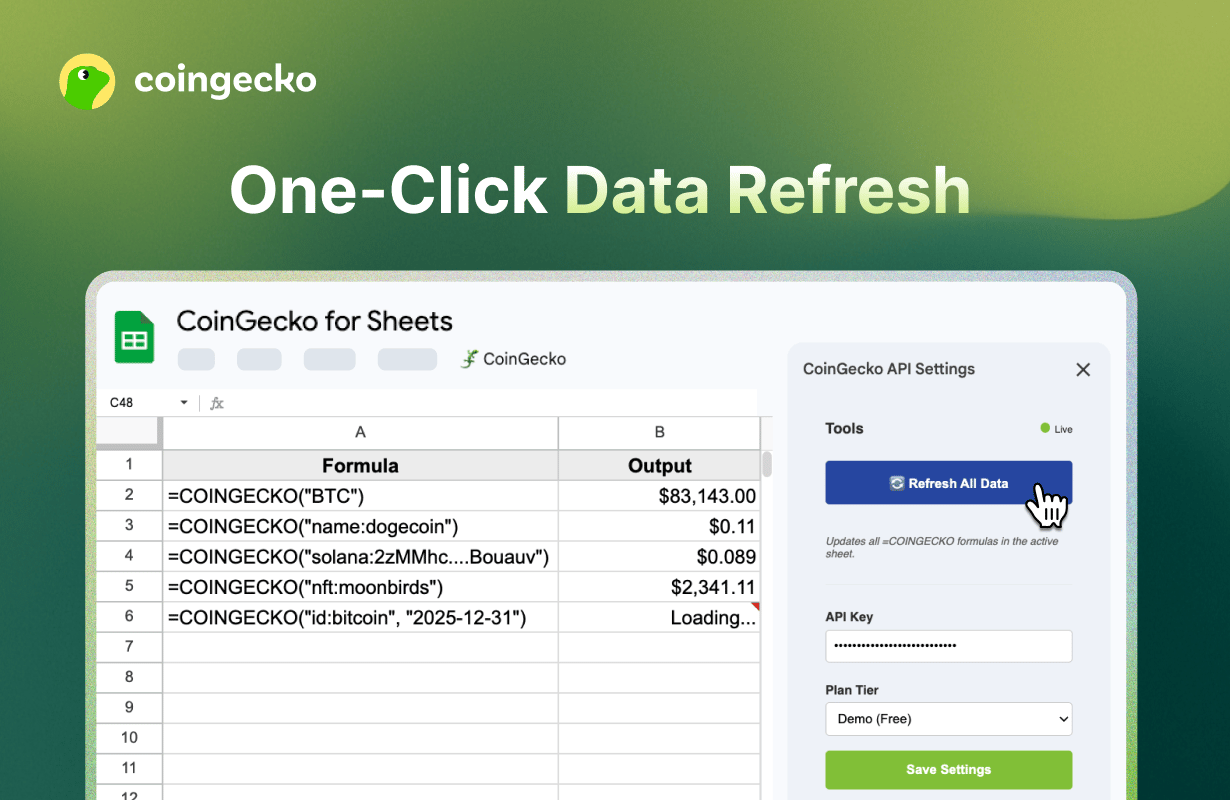
Google Sheets typically caches formulas for 1-2 hours. To get “right now” prices for your entire sheet:
  • Open the CoinGecko Sidebar.
  • Click Refresh All Data. This will force-update every =COINGECKO formula in your active tab.

📑 Error Debugging

If a formula returns an error, don’t guess why.
  • Go to Extensions > CoinGecko > View Error Logs.
  • This opens a dedicated log sheet showing the exact API response error (e.g., 429: Rate Limit Exceeded or 403: Invalid API Key).

4. Troubleshooting & FAQ

Why is my formula showing #NAME?
  • Ensure the add-on is installed and “CoinGecko” appears under the Extensions menu. If it’s missing, try refreshing your browser.
How do I find a Coin ID or NFT ID?
  • You can get the full list of support CoinGecko API ids here, or visit CoinGecko.com and GeckoTerminal.com. The Coin ID can also be found in the “API ID” section on the right sidebar of the coin or NFT’s page.
Is my API Key safe?
  • Yes. Your API key is stored securely using Google’s PropertiesService, meaning it is encrypted and unique to your Google user account. CoinGecko does not see or store your key on its own servers.
Why do I need to “Allow” all these permissions to use the addon?
  • We highly recommend checking “Select all” during the authorization flow. If a specific box is unchecked (such as “Connect to an external service”), the add-on will be unable to fetch price data, leading to errors in your formulas.
  • To provide a seamless experience, CoinGecko for Sheets requires specific authorizations to interact with your data and our API servers. We follow the principle of “Least Privilege,” meaning we only request the absolute minimum access needed to run our tools.
    • View and manage spreadsheets: Required to populate your cells with market data and create the “Error Logs” sheet if something goes wrong.
    • Connect to an external service: This allows the add-on to securely fetch real-time cryptocurrency prices directly from CoinGecko’s API servers.
    • Allow this application to run when you are not present: Essential for keeping your custom formulas active and responsive without requiring you to have the sidebar open at all times.
    • Display third-party web content: Needed to show the user interface in the Sidebar, where you manage your API Key, plan settings, and troubleshooting tools.
What is your privacy policy?
  • Please view the full details of our privacy policy here.
How do i share feedback or request to support more features?
  • If you have any questions or feedback, please share with us here.